OBS Overlay Quickstart: Do It Once, Do It Right
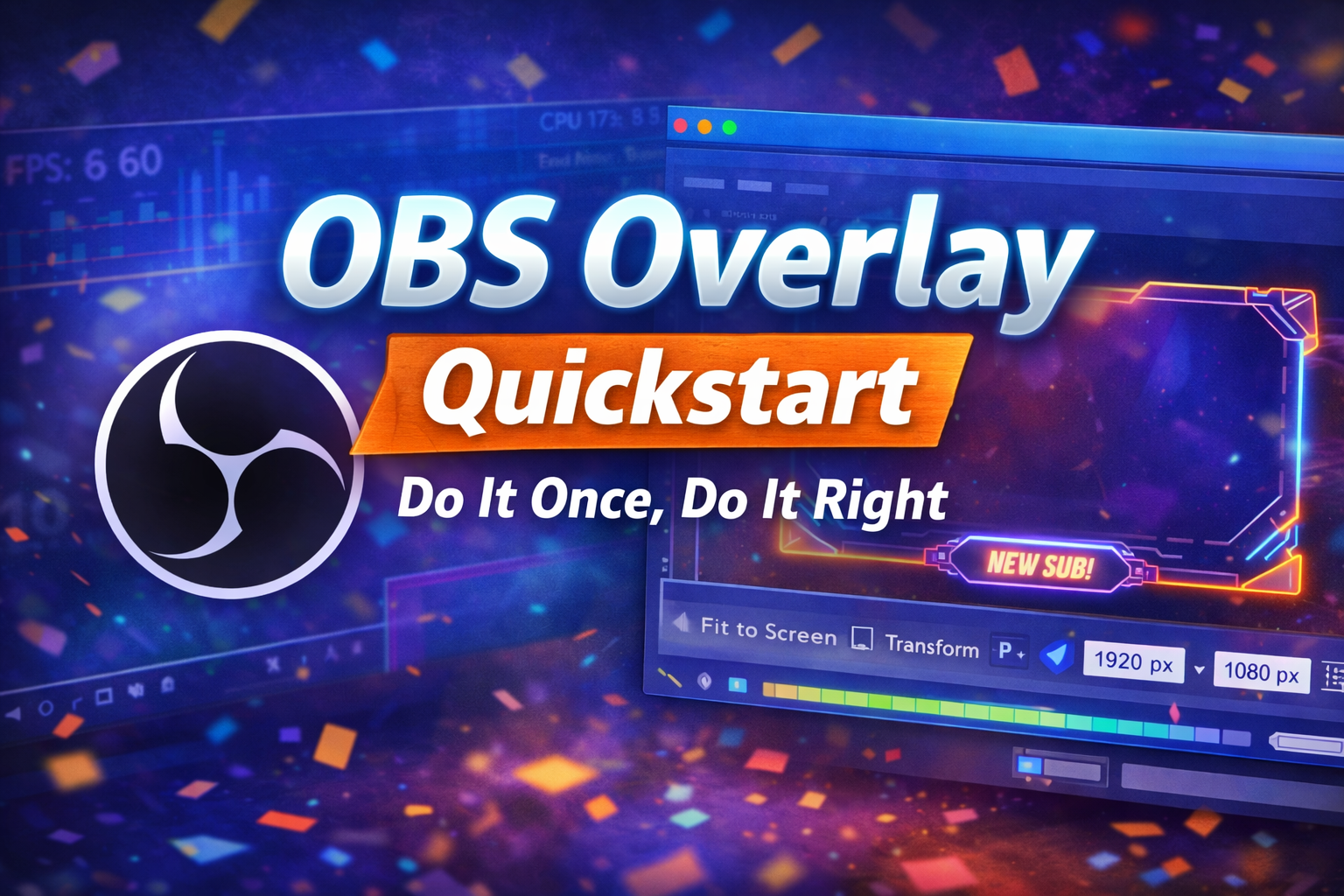
Posted: December 19, 2025 | Last Updated: December 23, 2025
Browser-based overlays are one of the easiest ways to level up a stream — and one of the fastest ways to accidentally tank performance if they’re set up wrong. This quickstart covers clean dimensions, safe FPS settings, and how to avoid the dreaded “mystery blur” that makes overlays look cheap on stream.
Use the Correct Browser Source Size
The most common overlay issue comes from scaling instead of sizing. When you add a Browser Source in OBS, always match the source dimensions to the overlay’s intended resolution.
- Full-screen overlays: 1920×1080 (or your canvas resolution)
- Lower thirds / alerts: Use exact pixel dimensions provided by the overlay
- Never: Stretch a smaller overlay to fit the screen
Scaling introduces blur because OBS resamples the browser output. If text looks soft or edges look fuzzy, this is usually why.
Set FPS Intentionally (Not Automatically)
By default, OBS browser sources may run at higher frame rates than needed. This wastes resources without improving visual quality.
- Most overlays look perfect at 30 FPS
- Animated or high-motion elements may benefit from 60 FPS
- Avoid leaving FPS uncapped unless you know why
Lower FPS on static overlays reduces CPU and GPU usage — especially important during gameplay-heavy streams.
Avoid “Mystery Blur” from Transform Scaling
If an overlay looks sharp in the browser but blurry in OBS, check how it was resized. Using Transform → Fit to Screen or dragging corners can introduce fractional scaling.
Best practice:
- Set browser source width and height correctly
- Reset transforms before positioning
- Position using whole-number values when possible
This ensures pixel-perfect rendering and consistent clarity.
Keep Overlays Lightweight
Every browser source is effectively a mini web page. Heavy animations, unnecessary effects, and stacked sources can quietly eat performance.
- Limit the number of active browser sources
- Avoid multiple full-screen overlays running simultaneously
- Close unused dock panels and preview tabs
If your game starts stuttering after adding an overlay, the overlay may not be “broken” — it may just be doing too much.
Test Before You Go Live
Always test overlays offline or in a private stream. Watch CPU usage, dropped frames, and GPU load while everything is active.
A clean overlay should feel invisible to performance — not like something you’re fighting mid-stream.
Final Tip: Simple Always Wins
Viewers notice clarity and consistency more than flashy effects. A sharp, readable overlay that doesn’t impact gameplay will always outperform something complex that causes lag or blur.
Set it up once, verify it’s clean, and let it run quietly in the background while you focus on content.